Table of Contents
Exporting Daz3D to Blender
This link, which describes how to do it on a Mac, was actually more helpful:
First, you’ll need to grab the script from the mcjTeleblender2 script page.
| Version 3 | https://sites.google.com/site/mcasualsdazscripts4/mcjteleblender3 |
|---|---|
| Version 2 | https://sites.google.com/site/mcasualsdazscripts3/mcjteleblender2 |
Unzip this file in your Daz Studio content folder. On a typical Windows PC that’s C:\program Files\Daz\Studio\Content
The content was in a “mcasual” directory. I put mine at: C:\Users\dan\AppData\Roaming\DAZ 3D\Studio4\scripts
Running from within Daz3D
After installation, there is a one-time setup, which is to “Scan known directories for files…” which is available on a menu on the left side.
From within Daz3D (I have 4.8), with a scene visible, you run this script by doing this:
- Open the scene
- On the lower left, click the tab “Content Library”
- Type “teleblend” in the search window
- Double-click mcjTeleBlender3
This creates an OBJ file and materials in the directory you specify within the panel.
Importing from Blender
An alternate way of getting the content is to find the scene.py file, created by the Daz3D step, opening this file with the Blender Text Editor, then running the script. When I did this, I got an error on the first line,
import mcjBlendBot
indicating that the mcjBlendBot “class” was not available, so I copied the PY files correctly to solve this problem (as shown in the next section). Now it runs in Blender, both from the Text Editor, and automatically launching Blender from Daz3D.
Launching Blender Automatically with content
Running the mcjTeleBlender3 panel in Daz3D is supposed to create the Blender version, and then cause Blender to open with the content.
I had not properly installed the mcjBlendBot.zip content. I opened the zip, then copied the content to: C:\Program Files\Blender Foundation\Blender\2.77\scripts\modules. Now from Daz3D it will open Blender with the scene inside.
Magenta Clothes
It's working OK, but the clothing is Magenta. Perhaps the materials aren't loading right.
Doing a Google on magenta indicated my suspicion was correct. I looked at that generated scene.mtl file and noticed that the directory path was incorrect.
C:/Users/Public/Documents/My_DAZ_3D_Library/Runtime/textures/goldtasselM/DriftHair/T_DriftFront.jpg
The spaces were changed to underscores, making the files be incorrect.
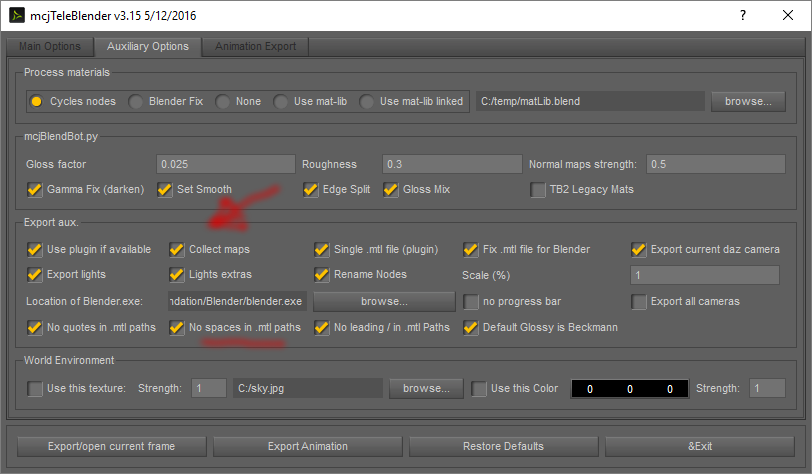
Discovered settings in the Daz3D plugin Auxiliary Options tab, need to
| Collect Maps | Checked |
|---|---|
| No spaces in .mtl paths | Checked |
It appears that when the plugin creates the scene.mtl file, it will be default change spaces to underscores, which makes the graphics files un-findable. When turning off the option, it appears that having spaces in the file path in the scene.mtl file also causes the files to be unreadable. Forcing “Collect Maps” seems to copy the graphics into one spot so that they can be found.
This seems to work: